
Guide
Library & history
Shelve your series, read the series page, and pick up exactly where you stopped.
The library#
Your library is a grid of covers with a badge for unread chapters. Along the top you switch between shelves:
- Continue reading: what you are in the middle of, newest first. Tap one and the book opens on your page.
- Reading, Plan to read and Completed: the status of each series. Set it from the series page.
- Your own tabs. Open the tab editor to add, reorder or hide tabs so the library matches how you shelve things.
Use the filter button to sort and filter, and the display sheet to change how the shelf looks, from a cover grid to a detailed list. Search finds titles in your library as you type.
The series page#
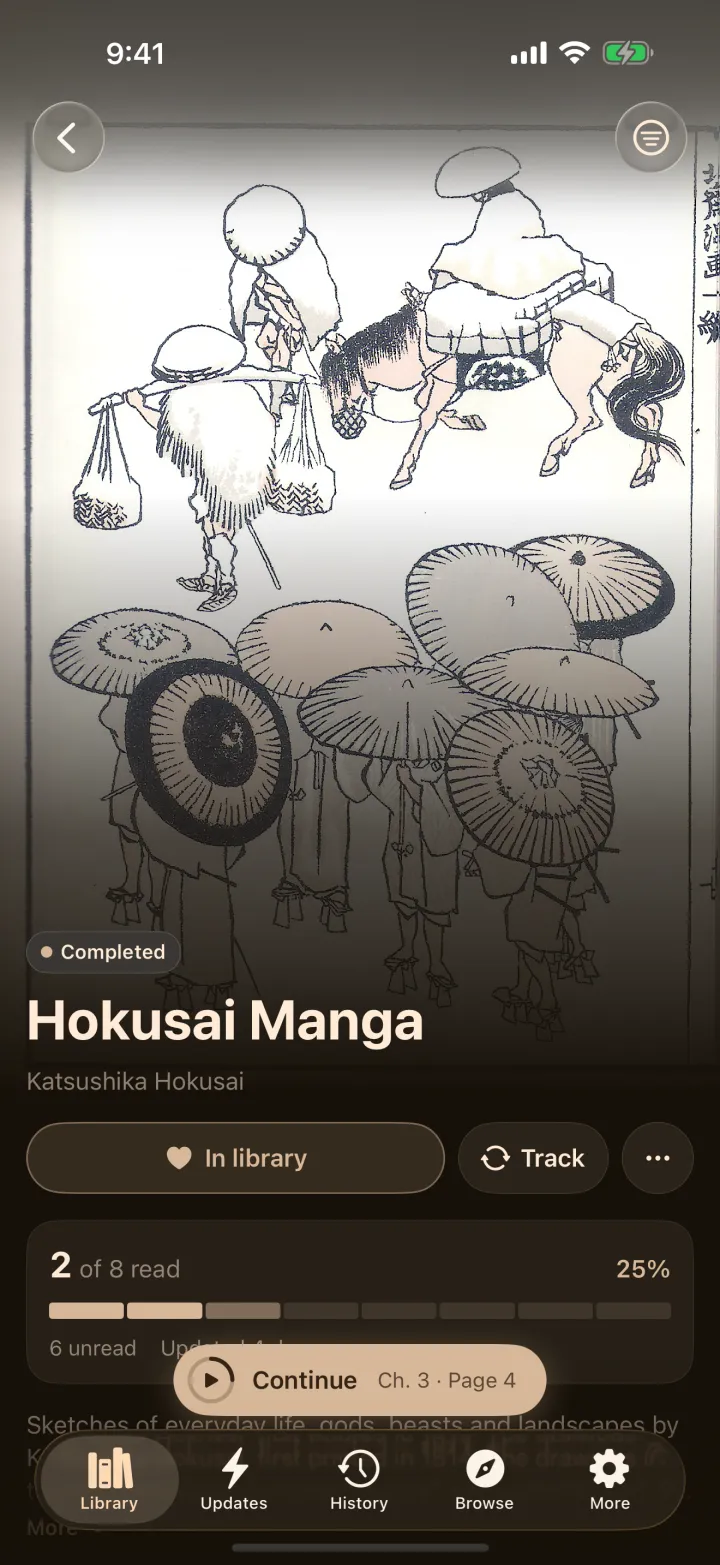
A series opens on a full-width poster with your progress and a Continue button that goes straight into the book. Below it are the description, genres, and the chapter list.
- Tap a chapter to read it. Swipe a chapter, or use its menu, to mark it read or unread, or to bookmark it.
- A finished series offers Mark as unread so you can read it again.
- The chapter list can be reordered and filtered from the menu above it.
- On iPad the page uses two columns.
Updates and history#
Updates lists new chapters for your library. Bokumi refreshes it in the background, and with Bokumi Plus it also updates when the app opens. History lists what you read most recently and the page you stopped on, so Continue always returns you to the right place.
Incognito#
The incognito switch at the top of More pauses history and tracker updates until you turn it off again.